Include the Signing Page via Iframe
Getting Started
There are two URL shapes for embedding our signing page. Which one applies to you depends on how the signing process is created, and that in turn depends on which Taktikal product your flow uses.
/s/:processKey/:signeeKey- use this when you already create the signing process yourself through our API. You supply both the process key and the signee key. This is the only option for Drop & Sign, since you supply your own document and must create the process through the API before showing the signing page./f/:flowKey- use this when you want the iframe itself to handle authenticating the end user and creating the process, so you don't need to integrate with our API to create a process first. You only supply a flow key. This only works for Smart Forms and Fill & Sign, where Taktikal generates the document from the flow itself. See Signing pages driven by a flowKey below.
/f/:flowKey is not available for Drop & Sign.
With a flowKey, no signing process exists yet when the iframe loads, so the
document has to come from the flow itself.
Drop & Sign is the case where you supply your own document, which means the
process must already exist, so it always uses the
/s/:processKey/:signeeKey shape.
A typical link to our signing page looks like so:
https://app.taktikal.is/s/:processKey/:signeeKey
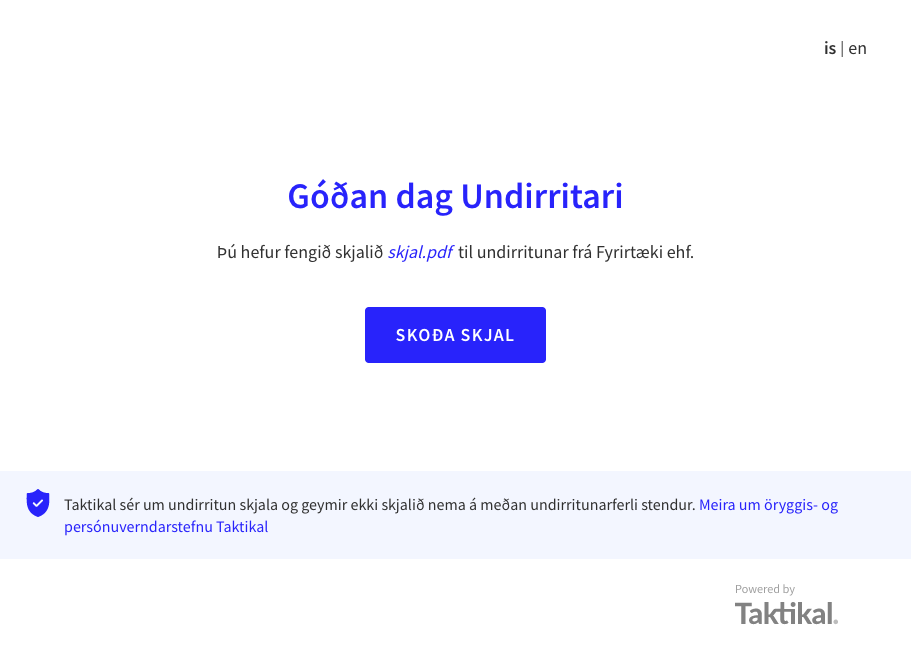
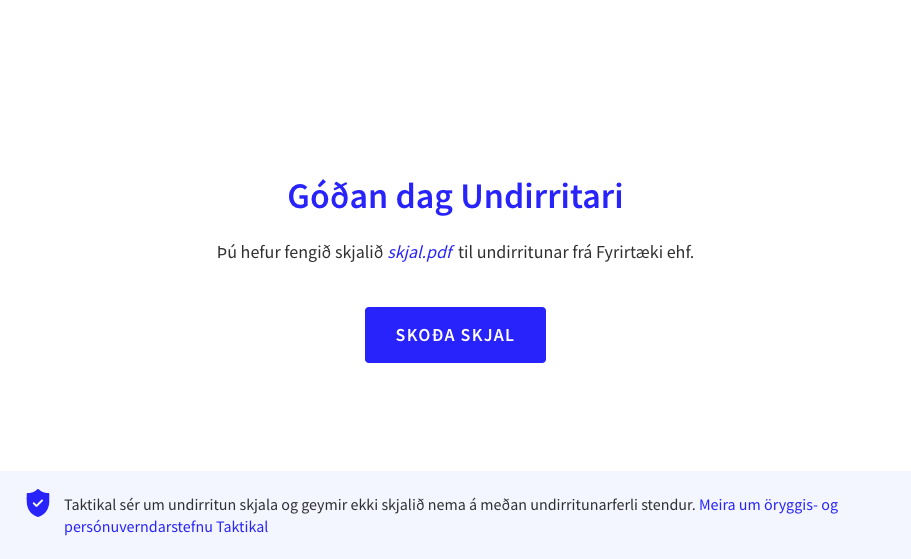
When including it in an iframe, you should add ?iframe=true to the URL.
<iframe src="http://app.taktikal.is/s/:processKey/:signeeKey?iframe=true" />
Adding ?iframe=true changes the behavior of the signing page to work better
inside of an Iframe. The footer and header will not be rendered and certain
spacing will be reduced.
Without ?iframe=true | With ?iframe=true |
|---|---|
 |  |
The ?iframe=true query parameter, and every configuration option and event
described below, applies the same way to both URL shapes unless a section
says otherwise.
Signing pages driven by a flowKey
This applies to Smart Forms and Fill & Sign flows only, where
Taktikal generates the document.
If you are on Drop & Sign, use the
/s/:processKey/:signeeKey shape instead.
If you don't want to integrate with our API to create a signing process before showing the signing page, you can instead embed the page using a flowKey:
https://app.taktikal.is/f/:flowKey
<iframe src="https://app.taktikal.is/f/:flowKey?iframe=true" />
For example:
https://app.taktikal.is/f/9773527b437f?iframe=true
With a flowKey, no signing process needs to exist yet.
The first screen the end user sees is an authentication screen, not the
greeting screen - see skipGreeting below.
On this screen the end user authenticates, for example with an Icelandic
eID, BankID, or by confirming their contact details, depending on how the
flow is configured.
The signing process is created automatically once authentication succeeds,
using the flowKey to determine which flow, document(s), and settings to use.
From that point on, the signing page behaves the same as the
/s/:processKey/:signeeKey shape.
Since the customer embedding the iframe does not create the process, you
also don't need to provide a signeeKey - the flowKey is the only key
required.
Getting a flowKey
You can find the flowKey for a Smart Form or Fill & Sign flow in the
Taktikal portal, listed alongside the flow.
Since /f/:flowKey only works for flows where Taktikal generates the
document, there is no flowKey to find for a Drop & Sign flow - use the
/s/:processKey/:signeeKey shape for those instead.
Nonexistent or inactive flowKeys
If the flowKey does not exist, the end user is shown our standard 404 page
instead of the signing page.
If the flowKey exists but the flow has been deactivated, the end user is
shown an in-page message saying the flow is no longer available.
In both cases, no postMessage event is sent to the parent window - see
Error events below.
Iframe configuration options
skipGreeting
When the user opens the link, the first screen they see will be a greeting
screen. You can skip this step by adding skipGreeting=true to the query.
?iframe=true&skipGreeting=true
This will make the first screen the user sees be the screen with the document to sign. This is useful when including the iframe within a larger process.
For the /f/:flowKey shape, the greeting screen is always skipped in favor
of the authentication screen described in
Signing pages driven by a flowKey.
skipGreeting has no additional effect there.
showEndScreen
When the user has completed signing they will be moved from the Control Code screen to an end screen.
To skip showing the end screen and manage what happens after signing
yourself, add showEndScreen=false to the query.
?iframe=true&showEndScreen=false
If this option is provided the user will not be moved from the Control Code screen by us, and it expects the parent page to remove the iframe in some way. If this is not done the user will keep seeing the Control Code indefinitely.
showEndScreen works the same way for the /f/:flowKey shape - it applies
once the process created from the flowKey has been signed.
hideSignDocumentHeaderText
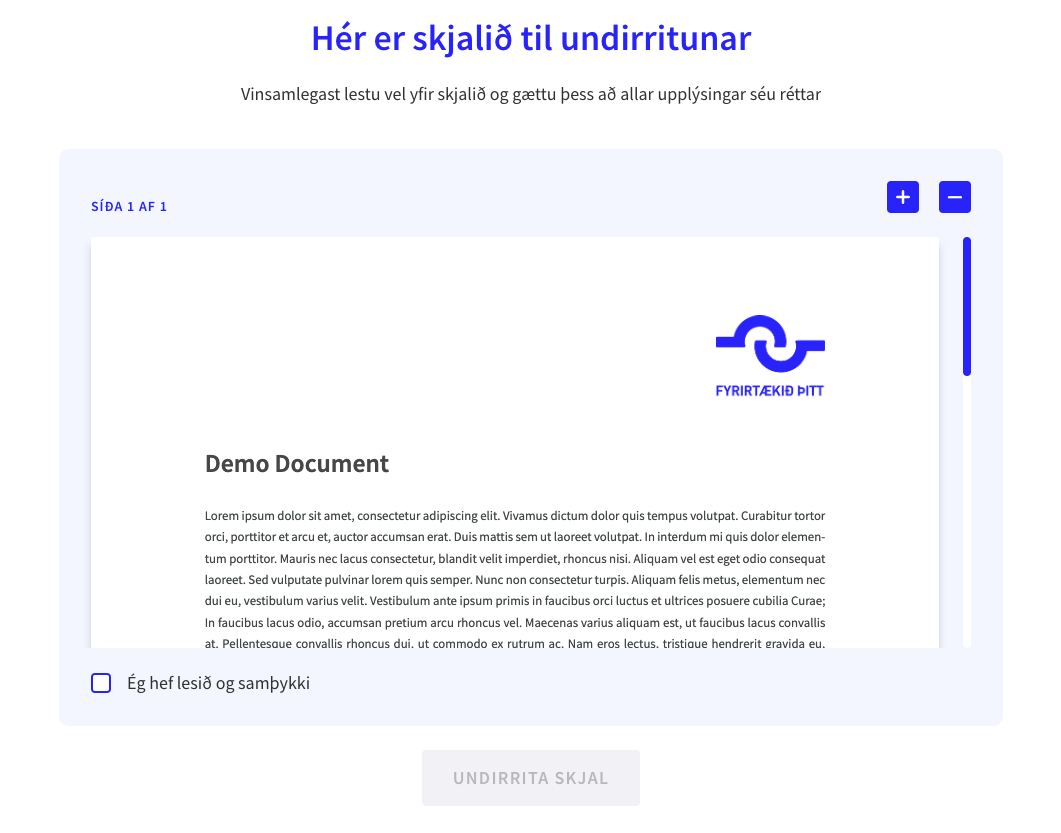
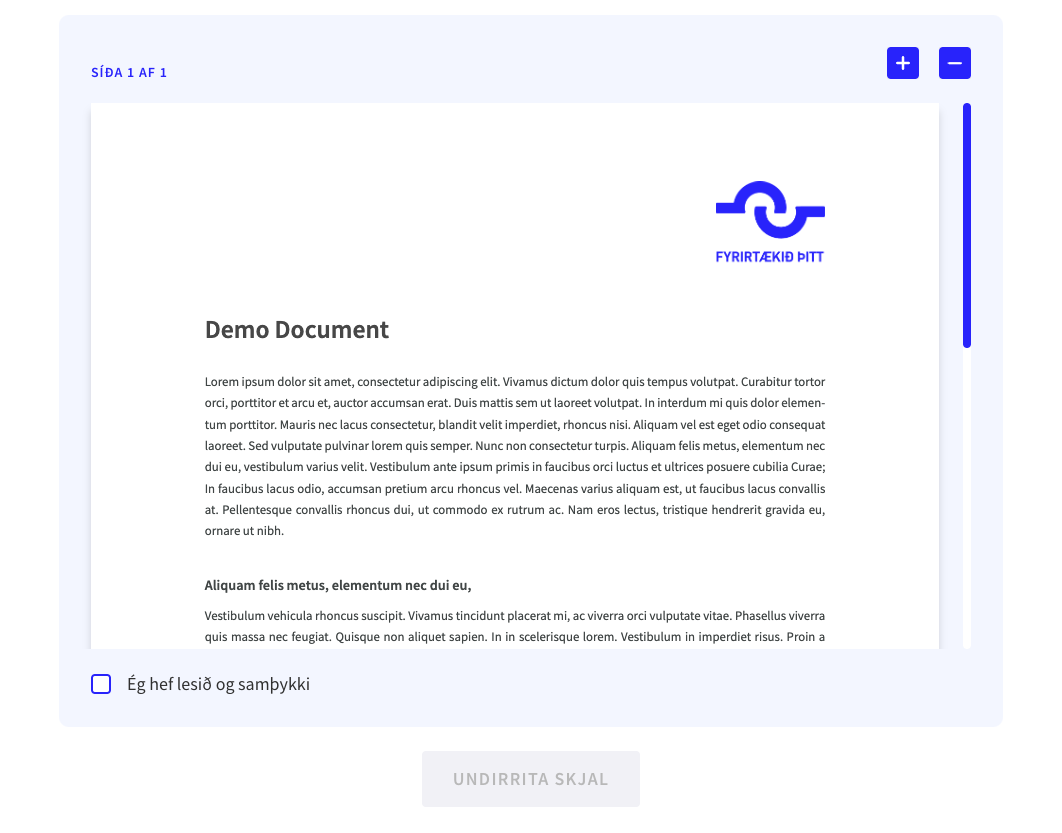
When using the iframe as part of a larger step-based flow, you may want to
provide your own title and text. Providing hideSignDocumentHeaderText=true
hides the text on the Sign Document screen.
hideSignDocumentHeaderText works the same way for the /f/:flowKey shape,
but only affects the Sign Document screen.
The authentication screen shown before the process is created is not
affected by this option.
Without hideSignDocumentHeaderText=true | With hideSignDocumentHeaderText=true |
|---|---|
 |  |
Iframe events
The iframe will send events up to the parent via postMessage. The events can be used to know what's happening inside the iframe.
For the /f/:flowKey shape, no events are sent while the end user is on the
authentication screen. processKey and signeeKey don't exist yet at that
point, since the signing process is only created after authentication
succeeds. An unsuccessful authentication attempt is shown to the user
inline, on the authentication screen itself, rather than through a
postMessage event.
Once the process has been created, the success events
below are sent the same way as for the /s/:processKey/:signeeKey shape,
with processKey and signeeKey populated. Most of the
error events below do not apply to the /f/:flowKey
shape at all - see that section for exactly which ones.
Success events
| Event type | Description |
|---|---|
signing_completed | Sent when EVERY document has been signed. The last signed document is sent alongside this event. |
document_signed | Sent when EACH document is signed, INCLUDING the last document. This event does NOT mean that every document has been signed. |
In nearly all cases, you will only want to listen to the signing_completed
event. Using document_signed is discouraged.
The payloads for these events look like so:
interface SignedDocument {
  content: string; // Base64
  digest: string;
  fileName: string;
}

interface SigningCompletedEventPayload {
  type: "signing_completed";
  processKey: string;
  signeeKey: string;
  /* 'signedDocument' is only sent for 'Qualified' signature type */
  signedDocument?: SignedDocument;
}

interface DocumentSignedEventPayload {
  type: "document_signed";
  processKey: string;
  signeeKey: string;
  signedDocument: SignedDocument;
}
Success event examples
Given a signing process with a single document, the following events are sent during the happy path:
{ type: "document_signed", processKey: "sp0", signeeKey: "si0", signedDocument: { /* ... */ } }
{ type: "signing_completed", processKey: "sp0", signeeKey: "si0", signedDocument: { /* ... */ } }
For a sequence of three documents, the events will look like so:
{ type: "document_signed", processKey: "sp0", signeeKey: "si0", signedDocument: { /* ... */ } }
{ type: "document_signed", processKey: "sp1", signeeKey: "si1", signedDocument: { /* ... */ } }
{ type: "document_signed", processKey: "sp2", signeeKey: "si2", signedDocument: { /* ... */ } }
{ type: "signing_completed", processKey: "sp2", signeeKey: "si2", signedDocument: { /* ... */ } }
Error events
Under certain conditions the user will not be able to sign the document. When this happens an error event will be sent.
already_signed, process_not_found, process_expired, and
process_canceled are all determined by looking up an existing process
using the processKey/signeeKey pair in the URL when the page first
loads. A /f/:flowKey URL never contains those keys, since no process
exists yet at that point, so none of these four events are ever sent for
the /f/:flowKey shape - not even later on, if the process that gets
created from the flowKey is later canceled or expires.
This also means there is no way to detect a nonexistent or inactive flowKey
programmatically through a postMessage event: as described in
Nonexistent or inactive flowKeys above,
those cases only appear as a rendered page (a 404 page, or an in-page
message), and no event is sent to the parent window either way.
| Event type | Description | Shape |
|---|---|---|
already_signed | The user has already signed every document. | /s/ only |
process_not_found | No signing process was found for the keys provided in the URL. | /s/ only |
process_expired | Process has already expired - In almost all cases this is 30 days after process has been created. | /s/ only |
process_canceled | Process has been canceled or recalled by the process owner. | /s/ only |
error | An unknown error occurred when loading the signing page - in most cases the events above are likely to occur before reaching this state. | See note |
We did not find a case where the standard flowKey signing page sends this event. If you are using a signing page built for your organization, treat it as possible and handle it. Handling the error event costs nothing, so we recommend listening for it regardless of which shape you use.
interface AlreadySignedEventPayload {
  type: "already_signed";
  processKey: string;
  signeeKey: string;
}

interface ProcessNotFoundEventPayload {
  type: "process_not_found";
  processKey: string;
  signeeKey: string;
}

interface ProcessExpiredEventPayload {
  type: "process_expired";
  processKey: string;
  signeeKey: string;
}

interface ProcessCanceledEventPayload {
  type: "process_canceled";
  processKey: string;
  signeeKey: string;
}

interface ErrorEventPayload {
  type: "error";
  processKey?: string;
  signeeKey?: string;
}
Language
Language support depends on the specific Signing Page (such as for Smart Forms), but our standard Signing Page supports the following languages:
| Language | Country Code |
|---|---|
| English | en-us |
| German | de |
| French | fr |
| Icelandic | is |
| Danish | da |
| Norwegian Bokmål | nb |
| Swedish | sv |
| Czech | cs |
| Spanish | es |
| Polish | pl |
| Hungarian | hu |
| Dutch | nl |
You can set the language of the Signing Page iframe by adding
lng={country_code} to the query.
/s/:processKey/:signeeKey?iframe=true&lng=de
For the /f/:flowKey shape, the language is fixed to whichever language the
flow itself was configured with, and lng has no effect. If you need the
signing page to appear in a specific language, configure that language on
the flow itself rather than passing lng.
FAQ
What size should I give the Iframe?
For a full-screen layout where the Signing Page iframe is below a header, we
recommend giving it a width of 100vw and height of
calc(100vh - headerHeight).
For situtations where it's not possible to make the iframe full-screen, giving it a fixed height works quite well.
- If
hideSignDocumentHeaderText=true, we recommend giving the iframe a height of at least 700px. - Otherwise, we recommend giving the iframe a height of at least 900px.
These fixed-height recommendations were measured against the greeting and
document-signing screens. For the /f/:flowKey shape, the end user also
sees an authentication screen first, which we have not separately measured
against these thresholds. If you use a fixed height with the /f/:flowKey
shape, we recommend using the full-screen layout above instead, or testing
with your own flow's authentication screen content to confirm a fixed height
works for you.
There is a double scrollbar, can I get rid of it?
The iframe will show a scrollbar if it is not tall enough. When providing a fixed size to the iframe
- If
hideSignDocumentHeaderText=true, a scrollbar will not be shown if the height is greater than or equal to 700px. - Otherwise, a scrollbar will not be shown if the height is greater than or equal to 900px.
For full-screen layouts, there is not a good way to get rid of a double scrollbar.
As noted above, these thresholds were measured against the greeting and
document-signing screens, not the /f/:flowKey shape's authentication
screen. Test with your own flow's content if you rely on a fixed height there.